
Automatic captions are speech recognition plus timing: the tool transcribes what is said, splits it into short lines, and shows each line while it is spoken. Every major editor and social platform can do this now. The choices that matter are which kind of captions you need and how much checking you do.
Burned-in captions or a caption file
| Kind | What it is | Use it for |
|---|---|---|
| Burned-in (open) captions | Text drawn into the video pixels. Always visible, styled however you like. | Short social clips, ads, anything watched on mute in a feed |
| Caption file (closed captions) | A separate text file, usually SRT or VTT, that the player shows or hides. | YouTube, websites, courses, anything where viewers may want them off or translated |
Many videos need both: burned-in captions for the clip you post on social, and an SRT file for the long version on YouTube or your site.
Free options you may already have
- CapCut
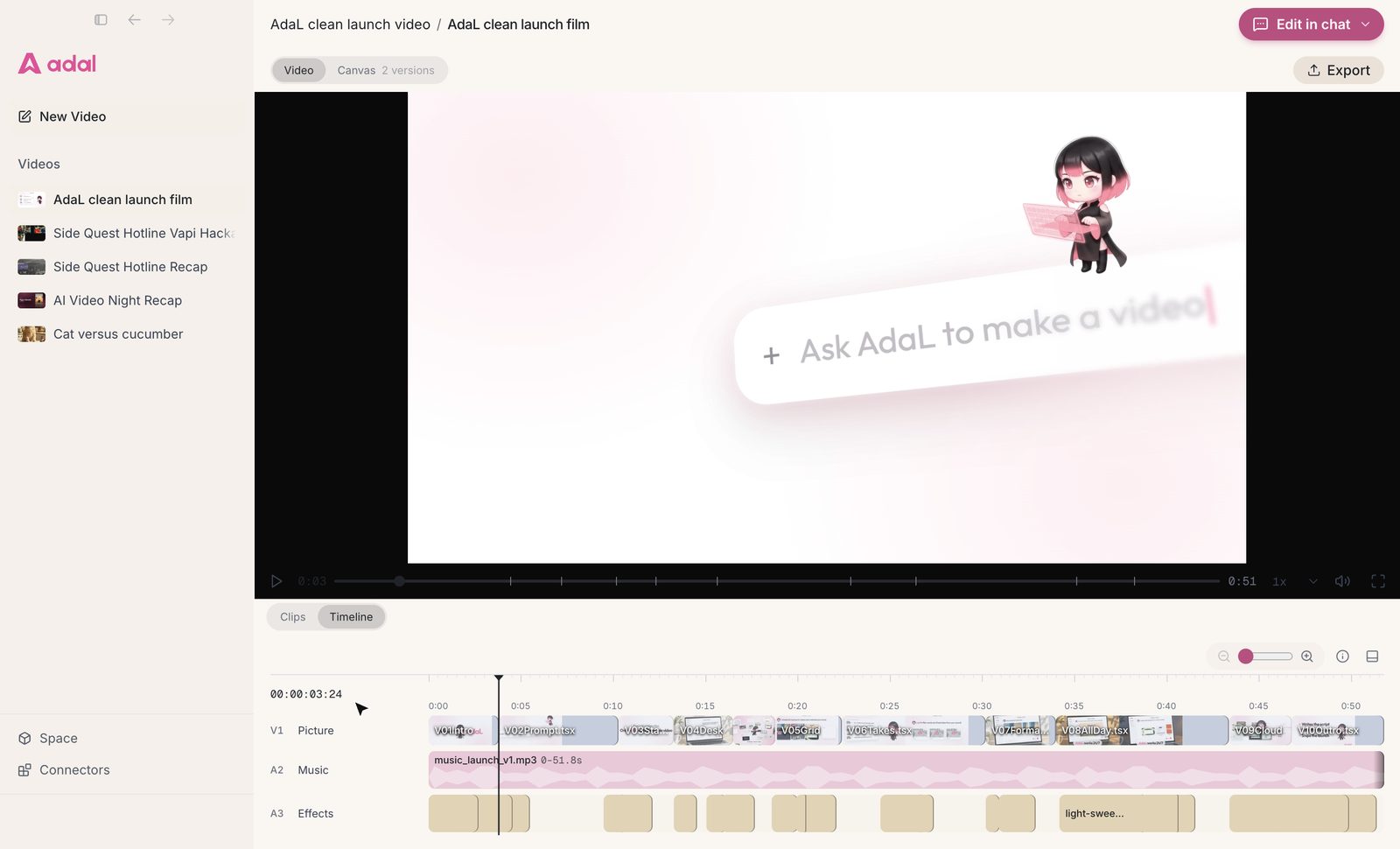
- Clipchamp
- Descript
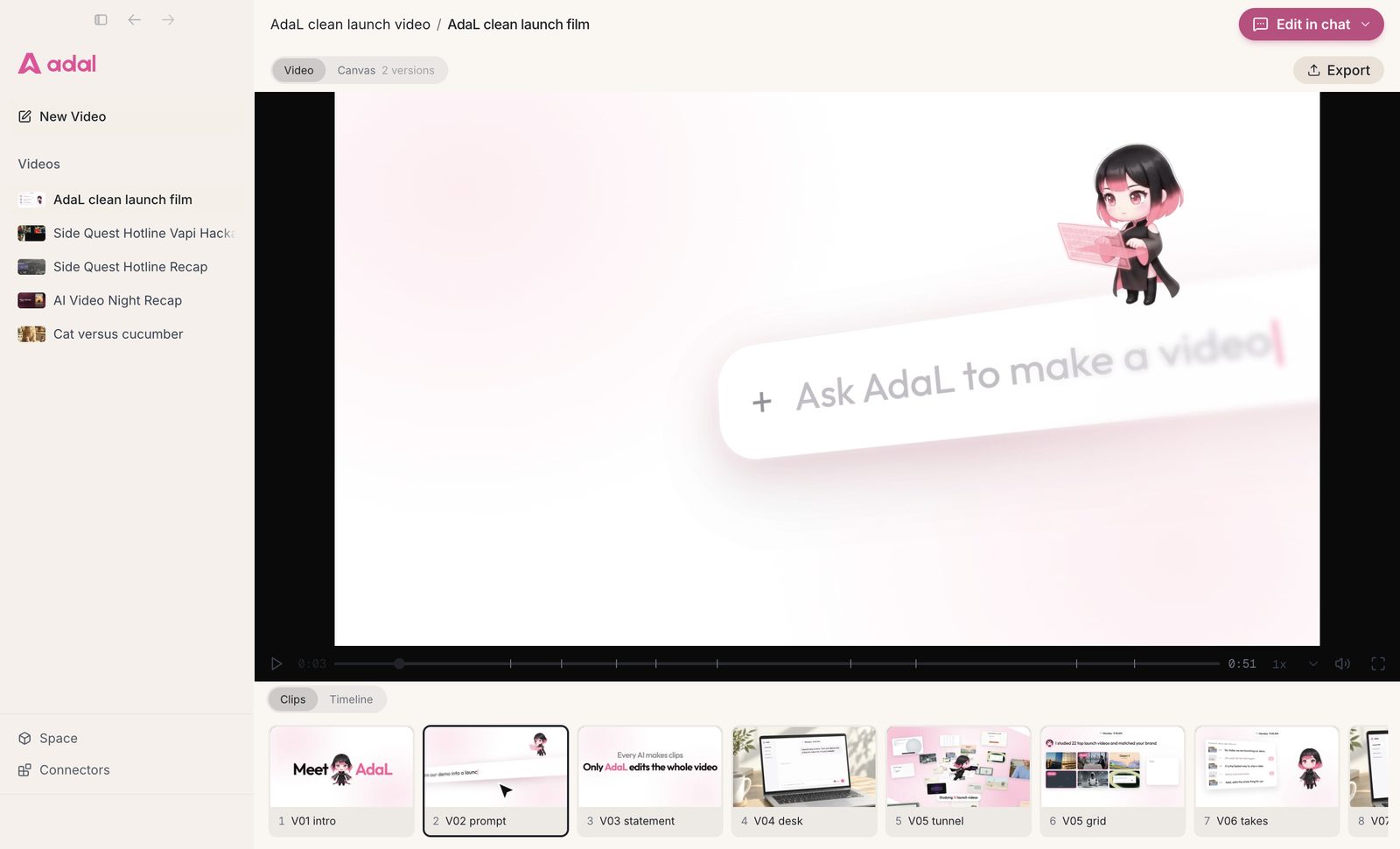
- AdaL




- The platform itself. YouTube generates captions after upload, and TikTok and Instagram offer auto captions when you post. Fine for a quick post, with little control over style.
- [Clipchamp](https://clipchamp.com/) on Windows includes automatic captions on its free plan.
- [CapCut](https://www.capcut.com/) has auto captions with many styles, built for vertical video.
- [Descript](https://www.descript.com/) captions from its transcript, so fixing a word in the text fixes the caption.

Step by step
1. Fix the audio first
Captions are only as good as the transcript, and the transcript is only as good as the audio. Cut music under the voice, reduce background noise, and level the volume before you caption.
2. Give the tool your names and terms
Product names, people's names and jargon are where speech recognition fails. Most tools let you add a custom vocabulary or fix a word everywhere at once. Do it before styling, so you correct each mistake once.
3. Choose a style people can read
- Two lines at most, a few words per line for vertical video.
- Large, bold text with a dark outline or box behind it.
- Keep it out of the bottom fifth and the right edge of vertical video, where app buttons sit.
- Highlight the spoken word only if it helps; constant motion is tiring to read.
4. Read every caption once
Play the video through with the sound off. You will catch wrong words, lines that change too fast, and captions that cover faces or on-screen text.
5. Export what each place needs
A burned-in version for social feeds, and an SRT or VTT file for YouTube and your website player.
Captions as one step of a bigger edit
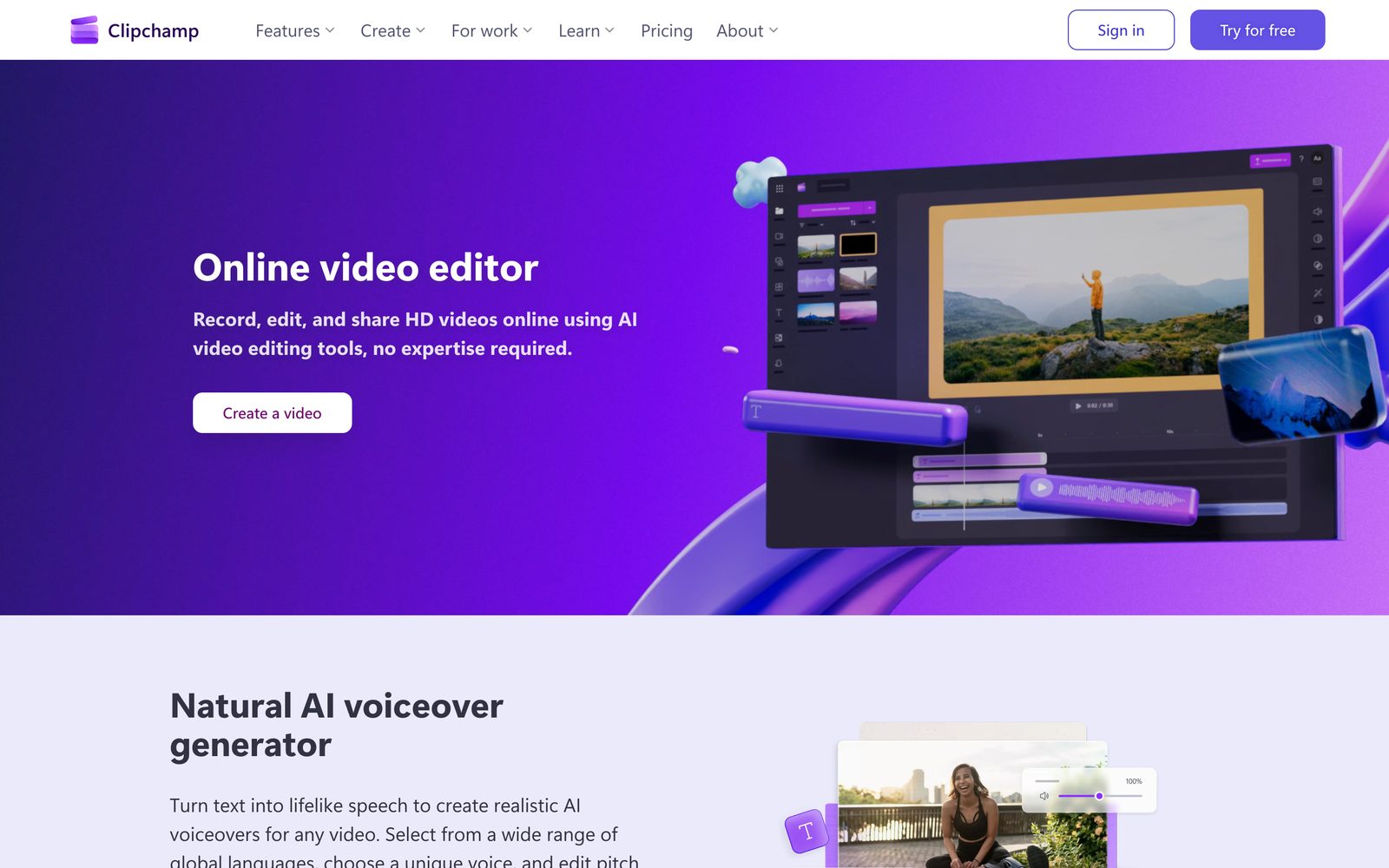
Captions are rarely the only thing a video needs. With AdaL you describe the whole edit in one message, for example: "Here is my 12-minute screen recording. Cut the pauses and filler words, add captions, and make a 60-second vertical version for LinkedIn." It cuts, captions and crops in one pass, with the caption style matched to your brand. For podcasts and interviews, see how to turn a podcast into clips with AI.
Questions
How accurate are automatic captions?
With clear audio and one speaker at a time, very accurate. Names, jargon, accents and overlapping speech cause most errors, so always read them once before you publish.
What is the difference between captions and subtitles?
Captions write down what is said in the same language, and often sounds too. Subtitles usually mean a translation into another language. Many tools use the words interchangeably.
Should I burn captions into the video?
For social feeds, yes: many people watch on mute and not every app shows caption files. For YouTube and your own site, upload a caption file so viewers can turn them off or translate them.
Can I add captions to a video for free?
Yes. YouTube, TikTok and Instagram generate captions when you upload, and editors such as Clipchamp and CapCut include automatic captions on their free plans.
Try AdaL on your own footage
Start free. Describe the edit, and AdaL does the steps.